Why You Can't Select or Copy Text in a PDF: Causes and Solutions
Table of Contents
- Direct Diagnosis: Why PDF Text Resists Selection and Copying
- The 4-Step Diagnostic Procedure
- GoToolstack PDF Compressor Engine: Real Canvas Mechanics
- The Role and Real Limits of OCR (Optical Character Recognition)
- Summary Diagnostic Checklist
- GoToolstack Client-Side PDF Tools
- Technical References & Official Standards
1. Direct Diagnosis: Why PDF Text Resists Selection and Copying
When you attempt to click and drag your cursor over a PDF document and nothing highlights—or when copied text pastes into your text editor as meaningless symbols (e.g. or black replacement boxes)—the document is not simply 'broken'. There are four fundamentally different technical causes, and automatically assuming 'it needs OCR' leads to wasted time and degraded document quality.
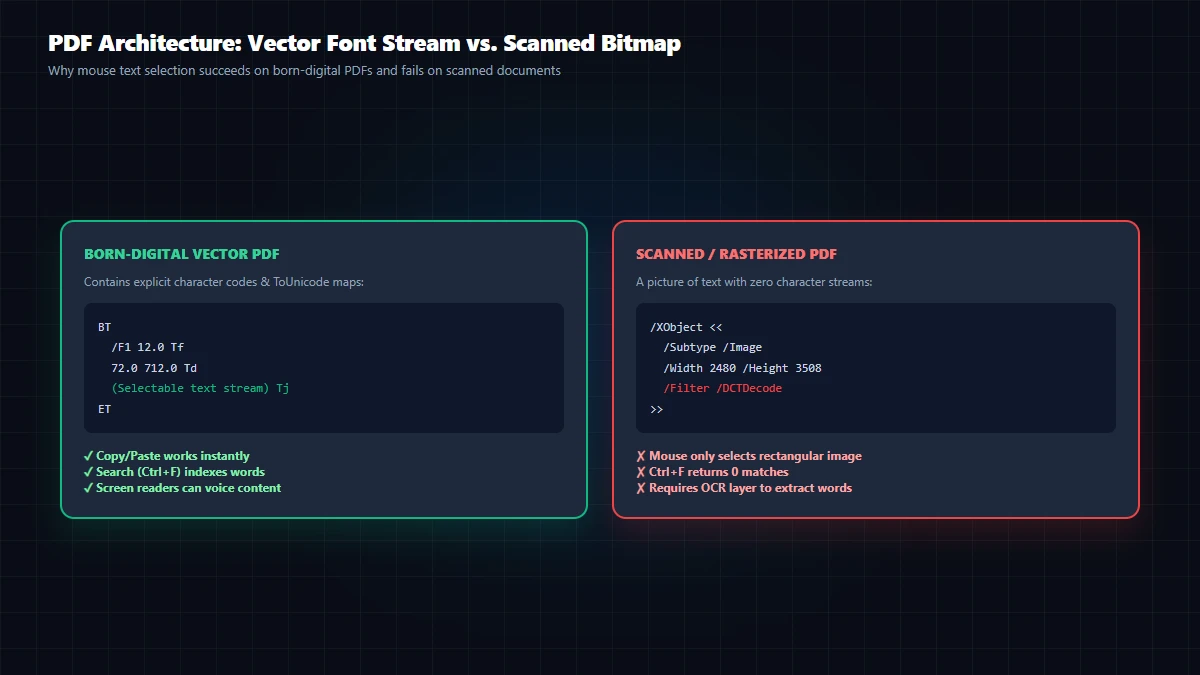
Examine these four distinct failure categories:
- Image-Only Scanned PDF: The page contains only a raw bitmap image (an XObject graphic). There is no underlying text stream operator (
BT ... ET,Tj) in the PDF syntax. - Rasterized Compression: A previously searchable PDF was compressed using an image-based pipeline (such as GoToolstack's in-browser Canvas compressor), converting vector fonts and selectable text into flat JPEG pixels.
- Document Permissions (DRM / Copy Protection): The text layer exists, but the PDF encryption dictionary has revoked the 'Content Copying' permission (bit 5 in the permissions flag).
- ToUnicode CMap Font Mapping Failure: Text is selectable, but custom embedded subset fonts lack a valid character map. Characters paste as gibberish. This is a font encoding flaw, NOT an OCR issue!
2. The 4-Step Diagnostic Procedure
Follow this systematic 4-step diagnostic flow to identify the exact technical cause in under 30 seconds:
Step 1: The Cursor Inspection Test
Hover your mouse pointer over the text. Does the cursor transform into an I-beam text selector (I), or does it remain a hand/arrow pointer? If it stays a pointer, there is no active vector text layer under your cursor.
Step 2: The In-Document Search Test (Ctrl+F / Cmd+F)
Press Ctrl+F (Windows) or Cmd+F (Mac) and search for a common word visible on the page (e.g. 'the', 'invoice', or 'date'). If the viewer reports zero matches despite the word being clearly visible, the page is rendered as an image.
Step 3: The Notepad Paste Test (Font Encoding Check)
If text highlights and copies, paste it directly into plain Notepad or VS Code. If the text appears as normal readable characters, copying works. If it pastes as random characters (#@&^!) or empty squares, the PDF has a ToUnicode CMap failure.
Step 4: The Document Properties Test (Ctrl+D)
Press Ctrl+D in Adobe Acrobat or browser PDF viewer and inspect the Security tab. Check the field Content Copying: Allowed or Not Allowed. If set to 'Not Allowed', copying is blocked by password encryption.
3. GoToolstack PDF Compressor Engine: Real Canvas Mechanics
our client-side in-browser PDF compressor operates via HTML5 Canvas rasterization:
Each page is drawn onto an in-memory <canvas> element, exported as a compressed JPEG image, and re-assembled into a fresh PDF using jsPDF. Consequently, running a vector PDF with selectable text through GoToolstack's compressor permanently converts the text into pixels. Selectable text, form fields, and digital signatures are not preserved.
Important distinction: Not all PDF compressors behave this way. Enterprise desktop software (such as Ghostscript or Adobe Acrobat Pro) can re-compress embedded image streams (DCTDecode, JBIG2) while preserving the text operator stream intact. Understand your compressor's processing pipeline before optimizing archival documents.
4. The Role and Real Limits of OCR (Optical Character Recognition)
Optical Character Recognition (OCR) software scans raster images, identifies letterforms, and generates an invisible, searchable text layer placed directly on top of the image.
Official Adobe Acrobat documentation notes that OCR is probabilistic and subject to significant recognition errors:
- Resolution Threshold: Scans below 300 DPI produce frequent character confusion (e.g. mistaking
1forlorI;rnform). - Skew and Distortion: Pages rotated by even 2 to 3 degrees or captured with mobile camera curvature degrade character recognition rates significantly.
- Complex Layouts: Multi-column tables, mathematical formulas, and marginal annotations frequently scramble reading order in the generated text layer.
GoToolstack does NOT provide an enterprise cloud OCR backend. Our offline OCR tool runs Tesseract.js client-side in browser Web Workers for basic image text extraction, constrained by browser memory.
5. Summary Diagnostic Checklist
- Pointer cursor + zero Ctrl+F matches = Scanned or rasterized PDF (requires OCR).
- Text selectable + right-click 'Copy' disabled = PDF DRM Security restriction (check permissions).
- Text selectable + pastes as gibberish = Broken ToUnicode CMap table (font embedding error, not OCR).
- Always preserve your original vector master document before applying raster compression.
6. GoToolstack Client-Side PDF Tools
Process and manage PDF files locally with zero server uploads:
Technical References & Official Standards
- Adobe Acrobat User Guide: Edit scanned PDFs – Optical Character Recognition (OCR) text layer generation vs. bitmap rasterization.
- Adobe Acrobat Learn & Support: Securing PDFs with passwords and permissions (/Encrypt dictionary, bitmask restrictions, and copy permissions).
- ISO 32000-1:2008 / ISO 32000-2:2020: Document Management – Portable Document Format (PDF Document Catalog, AcroForm Dictionary, and Cryptographic Signatures).