How to Merge PDF Files in the Correct Order: Step-by-Step Guide
Table of Contents
- The Problem with Unordered PDF Merging
- Empirical Test Setup: 5 Synthetic PDF Files
- Step-by-Step Ordering and Execution
- Real Measured Output & Benchmark Evidence
- Document Element Integrity by Operation: Text, Links, Forms, and Signatures
- Common Errors and Troubleshooting
- Technical Limitations & Boundaries
- Technical References & Official Standards
1. The Problem with Unordered PDF Merging
When compiling invoices, academic submissions, corporate contracts, or visa packets from multiple files, operating system file dialogues frequently upload files in arbitrary or alphanumeric order (e.g. File_10.pdf sorting before File_2.pdf). If merged blindly without queue reordering, the combined document presents inverted attachments, out-of-sequence appendices, and misplaced signature sheets.
To produce an authoritative, cohesive dossier, you need explicit manual control over the queue sequence before the binary byte merge takes place.
2. Empirical Test Setup: 5 Synthetic PDF Files
We tested the client-side merge pipeline using 5 distinct synthetic PDF documents created specifically for this verification from the repository test suite :
| Filename | Page Count | Page Width | Original Size | Role in Synthetic Packet |
|---|---|---|---|---|
A.pdf |
1 page | 201 pt | 431 bytes | Cover page |
B.pdf |
2 pages | 202 pt | 551 bytes | Executive summary & financials |
C.pdf |
1 page | 203 pt | 431 bytes | Table of contents |
D.pdf |
3 pages | 204 pt | 671 bytes | Detailed technical report |
E.pdf |
1 page | 205 pt | 431 bytes | Sign-off appendix |
Runnable Python generator: You can reproduce these exact fixtures locally using the following script:
import pypdf
def make_pdf(path, pages, width):
    w = pypdf.PdfWriter()
    for _ in range(pages): w.add_blank_page(width=width, height=300)
    with open(path, 'wb') as f: w.write(f)
make_pdf('A.pdf', 1, 201); make_pdf('B.pdf', 2, 202); make_pdf('C.pdf', 1, 203)
make_pdf('D.pdf', 3, 204); make_pdf('E.pdf', 1, 205)
3. Step-by-Step Ordering and Execution
- Add Files to Queue: Load source files via file picker or drag-and-drop. GoToolstack supports cumulative sequential additions without erasing previously loaded files. In our test,
A.pdfandB.pdfwere selected first, thenC.pdfandD.pdf, followed by droppingE.pdf.Initial Unsorted Queue: [A.pdf (p.1), B.pdf (p.2-3), C.pdf (p.4), D.pdf (p.5-7), E.pdf (p.8)]
- Reorder Queue Items: Use the dedicated reorder controls (↑ / ↓) to establish the intended logical reading sequence:
Target Ordered Queue: C.pdf (p.1) → A.pdf (p.2) → D.pdf (p.3-5) → B.pdf (p.6-7) → E.pdf (p.8)
- Execute Binary Merge: Click Merge PDFs (
#pm_merge). The client-sidepdf-libengine initializes an in-memory document container, iterates across the queue, extracts page trees, and compiles the unified buffer in device RAM. - Verify Output: Download the merged file (
test_merge_output.pdf) and audit total pages and dimensions.
4. Real Measured Output & Benchmark Evidence
Our verified browser test run (Chromium 155, Windows x64, October 15, 2026) produced the following measured results:
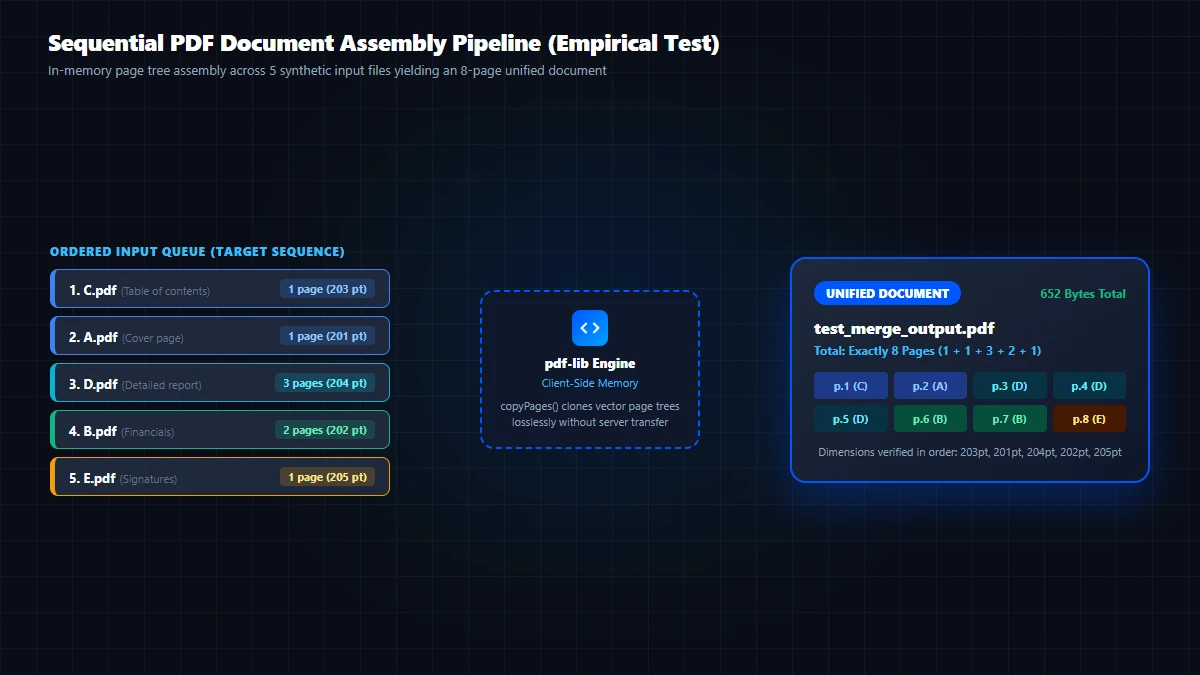
- Total Output Pages: Exactly 8 pages (1 + 1 + 3 + 2 + 1 = 8 pages).
- Merged File Size: Exactly 652 bytes in this specific synthetic fixture benchmark (compiled without rasterization; actual output size depends entirely on input document contents, text, font streams, and embedded assets, and is not a uniform size for all PDF merges).
- Page Dimensions Verified in Order: Page 1 is 203 pt (from C), Page 2 is 201 pt (from A), Pages 3–5 are 204 pt (from D), Pages 6–7 are 202 pt (from B), and Page 8 is 205 pt (from E).
- Measurement Environment: Repository fixture files, Chromium 155 engine, memory-buffered
pdf-lib.copyPages(), measured on October 15, 2026. Execution time depends on device CPU and document object complexity rather than an arbitrary fixed benchmark figure.
5. Document Element Integrity by Operation: Text, Links, Forms, and Signatures
PDF operations handle document internals differently depending on whether pages are copied structurally or rasterized. The table below delineates element preservation across each operation:
| Document Element | Operation 1: PDF Merge (pdfmerge) | Operation 2: Page Organizer (pdf-page-manager) | Operation 3: Rasterizer (pdfcompress) |
|---|---|---|---|
| Selectable Text & Fonts | Preserved: 100% vector text streams and font dictionaries copied losslessly without DPI drop. | Preserved: Vector streams intact; reordered or rotated via /Rotate dictionary. | Destroyed: Rasterized to JPEG pixels; selectable text drops to 0 words. |
| Hyperlinks & Annotations | Partially Preserved: Intra-page URI links are copied; cross-document named destination anchors may break. | Conditional: Preserved on kept pages; deleted if the host page is removed. | Destroyed: Canvas rasterization wipes all interactive annotations. |
| AcroForm Form Fields | Collision Risk: Duplicate field names across documents collide or overwrite; fields should be flattened before merge. | Conditional: Reordered pages keep fields; deleting pages with calculation references breaks form logic. | Destroyed: Form fields and interactive submit bindings are eliminated. |
| Digital Signatures | Invalidated: Cryptographic ByteRange digest seals original file bytes; copying pages breaks the cryptographic hash. | Invalidated: Any page deletion, addition, or rotation invalidates cryptographic signature seals. | Destroyed: Digital signature dictionaries and certificates are completely lost. |
6. Common Errors and Troubleshooting
Error 1: Password-Protected or Encrypted PDF
Symptom: The file upload is rejected or throws PasswordRequiredException.
Cause & Solution: Client-side WebAssembly cannot decrypt encrypted PDF dictionaries without credentials. Unlock the file by entering the owner/user password in your PDF viewer and saving an unencrypted copy before uploading.
Error 2: Form Field Name Collision
Symptom: Merging two filled invoices causes the second invoice's total to overwrite the first invoice's total.
Cause & Solution: Both source documents share identical AcroForm field names (e.g. txt_total). In Adobe Acrobat or browser print dialogue, choose "Print to PDF" to flatten active form fields into static vector text prior to merging.
Error 3: Accidental File Selection Loss
Symptom: Concern that selecting a file from another folder will erase already uploaded items.
Cause & Solution: GoToolstack preserves previous queue items upon successive file additions. If an unwanted file was added, click the red [X] delete button on that specific row to remove it.
7. Technical Limitations & Boundaries
Browser RAM Limit: All merging executes in client Web Worker / heap memory. Merging multiple documents totaling over 250 MB can cause memory pressure on lower-end mobile devices. For multi-gigabyte document archives, desktop environments or native CLI tools are advised.
- No Automatic Re-Numbering: Merging preserves existing printed page numbers, running headers, and footers as static visual elements; it does not alter or re-sequence printed page numbers.
- Hardware Dependency: Execution speed varies based on device processor capabilities, page count, and embedded image complexity; no universal sub-second guarantee applies.
- Client-Side Isolation: No document bytes or metadata are transmitted to external servers.
Technical References & Official Standards
- ISO 32000-1:2008 / ISO 32000-2:2020: Document Management – Portable Document Format (PDF Document Catalog, AcroForm Dictionary, and Cryptographic Signatures).
- Hopding/pdf-lib: PDF-lib Technical Specification & Page Tree Assembly Guide (In-memory page cloning and indirect object isolation).