How to Compare Two PDF Files for Differences: Text vs. Visual Layout Guide
Table of Contents
- Two Dimensions of Revision Changes: Semantic Text vs. Visual Layout
- The Scanned PDF Reality: Why Text Diff Fails Without OCR
- Three In-Browser View Modes: How They Work
- Step-by-Step Practical Comparison Workflow
- Page Sequence Shifts and Offset Handling
- Common Pitfalls & Troubleshooting
- Technical Boundaries & Integrity Disclaimers
- Technical References & Official Standards
1. Two Dimensions of Revision Changes: Semantic Text vs. Visual Layout
When auditing changes between two versions of a contract or technical report, engineers and legal teams must distinguish two completely separate technical layers:
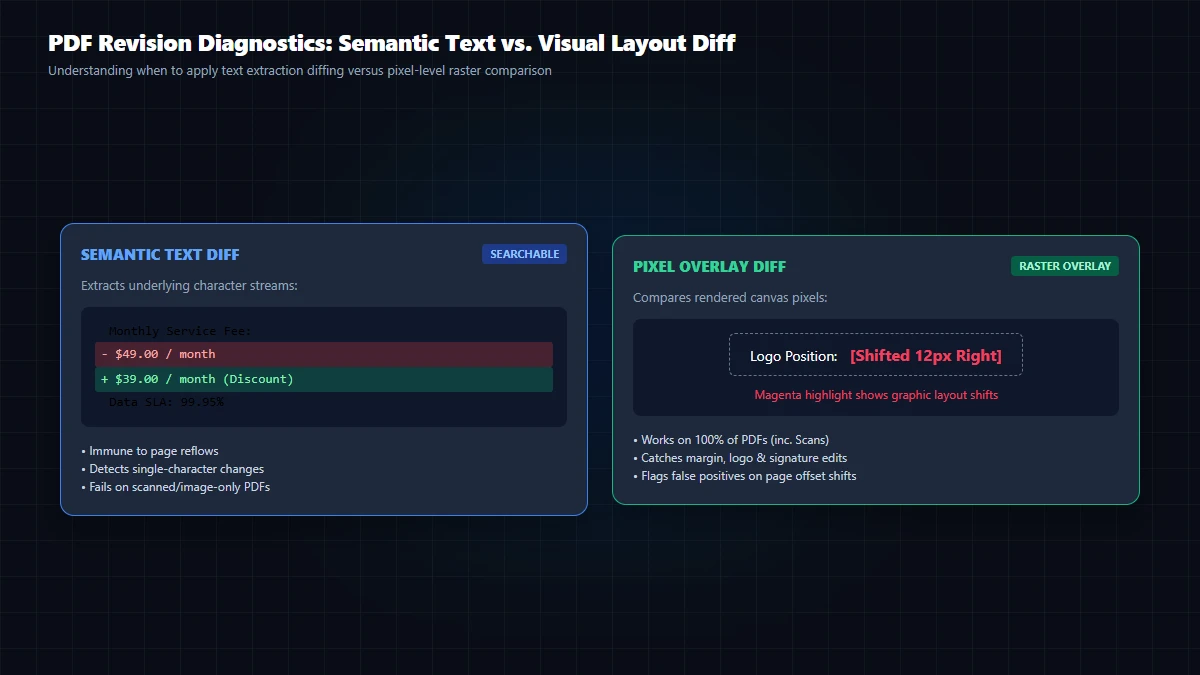
- Semantic Text Changes: Wording modifications, deleted liability clauses, updated payment amounts, or revised names. These live inside the PDF vector text stream as font glyph sequences.
- Visual Layout Changes: Shifting page margins by 2 mm, altered line leading, font substitutions (e.g. Arial to Helvetica), or moved signatures. These are purely cosmetic reflows.
A purely pixel-based image diff might report 80% differences if a 1-pixel margin shift causes lines to wrap, even if not a single word was changed. Conversely, a pure text diff cannot detect a moved signature stamp or an altered chart graphic. Reliable verification requires both modes.
2. The Scanned PDF Reality: Why Text Diff Fails Without OCR
Scanned PDFs Contain No Vector Text Streams: A scanned document is simply a full-page raster image (JPEG or TIFF) embedded in a PDF container. It has no character encoding tables. Calling text extraction returns an empty string.
GoToolstack PDF Compare monitors character density per page in real time. If a page contains fewer than 10 text characters, it flags the page as Scanned Document, suppresses misleading 0-word text diffs, and directs you to the in-browser Offline OCR tool.
3. Three In-Browser View Modes: How They Work
All comparisons execute in client RAM without sending confidential files to external servers:
| View Mode | Underlying Algorithm | Core Strength | Blind Spots |
|---|---|---|---|
| Side-by-Side (Sync) | Synchronized dual-canvas viewport rendering | Natural human visual scanning of overall document structure. | Can miss subtle numerical changes or punctuation edits. |
| Text Diff (LCS) | Y-coordinate line grouping & Longest Common Subsequence (Myers LCS) | Pinpoints exact inserted (green) and deleted (red) words. | Cannot inspect graphics, stamps, or scanned bitmap pages. |
| Visual Overlay (Pixel) | HTML5 Canvas ImageData pixel-by-pixel RGBA delta subtraction | Highlights relocated signatures, margin shifts, and chart changes. | High sensitivity: a 1px margin shift turns the entire page red. |
4. Step-by-Step Practical Comparison Workflow
- Load Source Documents: Drag baseline document into Document A and revised copy into Document B. Use the Swap button (↔) if ordered in reverse.
- Run In-Memory Comparison: Click Compare Documents. Both files are parsed sequentially in browser memory.
- Inspect Summary Badges: Check page counts, identical pages, modified pages, added pages, and removed pages.
- Navigate Problem Pages: Use the page dropdown to jump directly to pages marked as Modified, Added, or Scanned.
- Toggle Modes: Use Text Diff for exact verbal alterations; switch to Visual Overlay to verify stamps and layouts.
- Download Audit Report: Export a verifiable
.txtreport summarizing all changed pages and word counts.
5. Page Sequence Shifts and Offset Handling
When an editor inserts a new page (e.g. an Executive Summary) as Page 2 of Document B, naive page-by-page comparison pairs Old Page 2 with New Page 3, falsely flagging all subsequent pages as 100% modified. GoToolstack handles total page counts independently, marking inserted pages as Added and omitted pages as Removed.
6. Common Pitfalls & Troubleshooting
Issue 1: Password-Protected or Encrypted Document
Client-side WebAssembly cannot decrypt secure PDF dictionaries without credentials. Unlock the encrypted file first using the PDF Unlock Tool.
Issue 2: Typographic Ligature Discrepancies ('fi' vs. 'f' + 'i')
Document A encoded the typographic ligature 'fi' as a single Unicode glyph (\uFB01), whereas Document B encoded two separate characters 'f' and 'i'. The difference is an internal font encoding artifact, not an editorial change.
Issue 3: Scanned PDF Contract Shows 0 Words Changed
Handwritten notes and scan images lack vector text. Switch to Visual Overlay mode to inspect pixel deltas, or run OCR prior to diffing.
7. Technical Boundaries & Integrity Disclaimers
No Certified Legal Notary Validation: GoToolstack PDF Compare is an in-browser engineering utility for rapid editorial and revision review. It does not replace certified forensic document examination or judicial notary audit.
- Memory Management: Large documents (>150 pages) flush high-resolution canvas buffers between pages to prevent browser out-of-memory crashes.
- Client-Side Privacy: Documents and diff summaries are processed entirely in browser memory and never uploaded to remote servers.
Technical References & Official Standards
- ISO 32000-1:2008 / ISO 32000-2:2020: Document Management – Portable Document Format (PDF Document Catalog, AcroForm Dictionary, and Cryptographic Signatures).
- Eugene W. Myers (1986): An O(ND) Difference Algorithm and Its Variations – Longest Common Subsequence (LCS).
- W3C HTML5 Canvas 2D Context: Specification for canvas.toBlob() MIME type handling, pixel array extraction, and memory constraints.